
How to grab your Simify tracking link
Simify tracks affiliate activity through Impact. Here's how to find your link and code, and how to point that link at a specific product.
Getting your tracking link in Impact
Sign in to Impact
Go to app.impact.com and sign in with your publisher account. You need to have joined the Simify program first, if you haven't, reach out to us and we'll get you set up.
Find the "Create a link" card on your Home page
It sits right on your Impact dashboard home. That one card is all you need to generate a tracking link, no digging through menus.
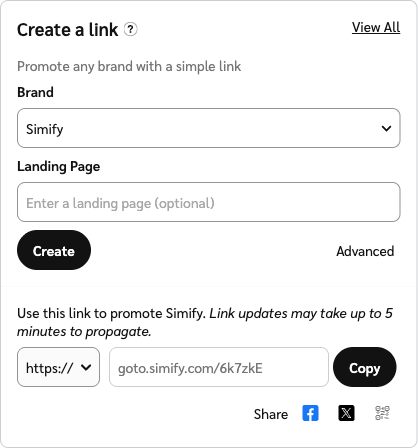
This is what it looks like in Impact:
Set the brand to Simify
In the Brand dropdown, choose Simify. That tells Impact to build a link tied to the Simify program and to your own publisher ID.
Generate and copy your link
Click Create
Leave Landing Page blank to send people to the Simify homepage, then click Create. Impact generates your tracking link, it looks like goto.simify.com/xxxxxx. Any sale from a click on that link is attributed to you.
Copy it and use it
Hit Copy and drop the link wherever you'd normally place your affiliate link, in your article text, your video description, or your bio. Impact notes a new link can take up to 5 minutes to start working, so give it a moment before you test it.
Build a deep link to a specific product
This is the version to lead with in blog posts and articles. It sends the reader straight to a specific product, with the discount coming off at checkout, no code to type.
Same card, one extra step: before you click Create, paste your destination into the Landing Page field. To combine tracking with an auto-applied discount, use this pattern as the landing page:
simify.com/discount/YOURCODE?redirect=/products/YOUR-PRODUCT-HANDLE
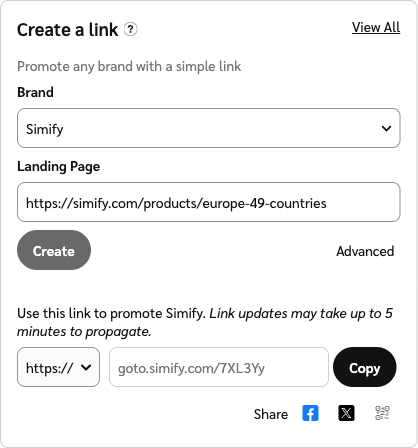
Swap in your real code and the product page you want to feature, paste it into Landing Page, then click Create. Impact gives you a fresh goto.simify.com link that does two things at once: it tracks the click back to you, and it drops the reader on that product with the discount waiting at checkout.
A deep link in progress, a product URL in the Landing Page field and a new goto.simify.com link generated:
Not sure which product handle to use? Drop the ?redirect= part and use simify.com/discount/YOURCODE as the landing page instead, that lands the reader on the Simify homepage with your discount applied, and they can browse from there.
Using your code as backup
Not every reader clicks a link, and video links aren't clickable at all. That's what your code is for. Give readers or viewers the option to type your code at checkout instead of clicking through.
Your code lives in your kit on your brief page. It doesn't expire, so there's no need to add urgency language around it, just make sure you're always quoting the exact code and discount rate you've been given.